# Lab Manual

# Infrastructure


# Accounts

## Your lab account

You can use your lab account to log into the following services:

- This [wiki](https://wiki.lab.pyarelal.xyz/books/lab-manual/page/wiki).
- The lab's [project management platform](https://wiki.lab.pyarelal.xyz/books/lab-manual/page/project-management-platform)
- The lab's [Zulip instance](https://zulip.lab.pyarelal.xyz).
- The lab's [video site](https://peertube.lab.pyarelal.xyz) (PeerTube), which has training videos such as the EEG/fNIRS cap setup series. Choose **Login with Kanidm** on its login page. Videos are visible only when you are logged in.

Other services may be added in the future.

## Adding passkeys/changing password

If you need to add new passkeys or change your password, you can do so by visiting [https://idm.lab.pyarelal.xyz](https://idm.lab.pyarelal.xyz) .

# Wiki

## Purpose

We will use this wiki as a place to put the following:

- Lab news
- Lab policies
- Lab procedures
- Lab resources
- Lab infrastructure
- Lab member profiles
- Lab seminar (aka journal club/reading group) schedules
- Public-facing project pages
- And more...

What does **not** go into this wiki:

- Credentials (usernames/passwords) 
    - These should be shared via [Stache.](https://stache.arizona.edu)
- Correspondence

## Organization

The wiki is based on [Bookstack](https://www.bookstackapp.com/). The user documentation for Bookstack can be found [here](https://www.bookstackapp.com/docs/user/content-overview/).

### Public vs. Private content

Bookstack allows fine-grained visibility controls. Only lab members (i.e., people with lab accounts) have the ability to edit pages on this wiki. However, there are a couple of Books that are viewable by the public:

- Public
- Lab Manual

The 'Public' book is meant to act like a kind of 'landing page' for the public, and has things like lab news, etc.

The 'Lab Manual' book contains lab policies and procedures, and is public since we want to share this information with prospective students, etc.

You are welcome to create additional books, pages, and chapters as you see fit. These are subject to being curated by the lab PIs, especially if they are public.

If you want to create a new page and are not sure where to put it, you can put it in the 'Miscellaneous' book (visible only to lab members), and move it elsewhere in the future if it makes sense.

## Editing

The wiki has support for both WYSIWIG and Markdown editing. Feel free to use whichever one you prefer. However, if you are copying content from a PDF file to a wiki page, please use the Markdown editor, in order to prevent the creation of spurious HTML markup.

# Compute and Storage

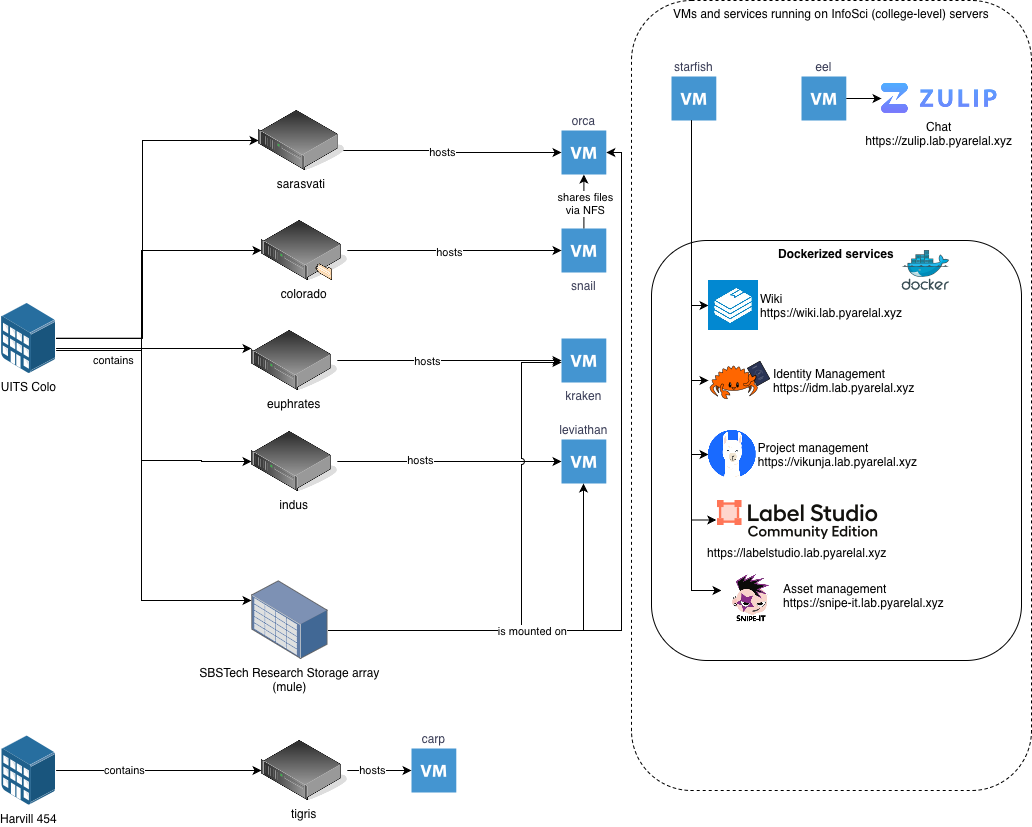
<div drawio-diagram="60"><img src="https://wiki.lab.pyarelal.xyz/uploads/images/drawio/2026-02/drawing-3-1770403719.png" alt=""/></div>

### Compute

The ML4AI lab has the following compute VMs:

<table border="1" id="bkmrk-vm-name-host-cpu-ram" style="border-collapse: collapse; width: 100%; height: 116px;"><colgroup><col style="width: 13.571429%;"></col><col style="width: 35.952381%;"></col><col style="width: 13.571429%;"></col><col style="width: 36.785714%;"></col></colgroup><thead><tr style="height: 29px;"><td style="height: 29px;">VM Name</td><td style="height: 29px;">CPU</td><td style="height: 29px;">RAM</td><td style="height: 29px;">GPUs</td></tr></thead><tbody><tr style="height: 29px;"><td style="height: 29px;">kraken</td><td style="height: 29px;">AMD EPYC 7662 64-Core Processor (2.0 GHz)</td><td style="height: 29px;">720 GB</td><td style="height: 29px;">2x NVIDIA A100 (40 GB)</td></tr><tr style="height: 29px;"><td style="height: 29px;">leviathan</td><td style="height: 29px;">AMD EPYC 7763 64-Core Processor (2.45 GHz)</td><td style="height: 29px;">720 GB</td><td style="height: 29px;">6x NVIDIA RTX A6000</td></tr><tr style="height: 29px;"><td style="height: 29px;">carp</td><td style="height: 29px;">AMD EPYC-Rome Processor</td><td style="height: 29px;">95 GB</td><td style="height: 29px;">1x NVIDIA GeForce RTX 3090</td></tr><tr><td>orca</td><td>AMD EPYC 9474f, 48-core, 3.60 GHz, 256MB cache</td><td>1.5 TB (tentative)</td><td>2x NVIDIA H100 NVL (94GB hbm3, PCIE 5.0 x16)</td></tr></tbody></table>

TODO:

- Add information about venti

### Storage

The lab has a 20 TB NFS share mounted at /media/mule on the kraken, leviathan, and orca VMs.

There is a 90 TB NFS share mounted at /media/snail-ssd on the orca VM.

TODO:

- Add information about timelord

TODO:

- Add information about other legacy SISTA systems that are still operational.

### Backup

- VMs running on InfoSci servers (e.g., eel, starfish) are backed up every 6 hours
- As of 2025-03-06, VMs running on lab servers (e.g., kraken, leviathan) are not backed up, but the plan is to include them in the backup system in the future.

# Project management platform

We have a self-hosted instance of the [Vikunja](https://vikunja.io) project management app running at [https://vikunja.lab.pyarelal.xyz](https://vikunja.lab.pyarelal.xyz).

# Snipe-IT

We have an instance of Snipe-IT at [https://snipe-it.lab.pyarelal.xyz](https://snipe-it.lab.pyarelal.xyz) that we will use to keep track of our equipment and consumables.

You can log into the Snipe-IT instance using your lab credentials (username and Unix password).

# Zulip

We have an instance of Zulip set up at [https://zulip.lab.pyarelal.xyz](https://zulip.lab.pyarelal.xyz), to enable efficient communication.

# LiteLLM

The lab runs a [LiteLLM](https://litellm.ai) proxy that gives you access to large language models running on the lab's GPU server (orca), using an OpenAI-compatible API. This lets you use tools like Python scripts, curl, and Claude Code with local open-source models without needing an external API account.

## Getting access

Email <adarsh@arizona.edu> to request an API key. Include a brief description of how you plan to use it.

The API base URL is: `https://litellm.lab.pyarelal.xyz`

Once you have a key, set it as an environment variable so it persists across sessions. Add this to your shell config file (e.g. `~/.bashrc`, `~/.zshrc`):

```bash
export LITELLM_API_KEY=sk-...

```

Then reload your shell: `source ~/.bashrc` (or open a new terminal).

## Available models

To see which models are currently available:

```bash
curl https://litellm.lab.pyarelal.xyz/models \
  -H "Authorization: Bearer $LITELLM_API_KEY"

```

Models are named `<family>:<size>[-a<N>b]-<quant>`, e.g. `qwen3.6:35b-a3b-q8_0`. The name tells you three things: total parameter count (`35b`), whether it's a mixture-of-experts model (`a3b` = only 3B parameters active per token; no `a`-suffix means dense), and the quantization level (`q8_0` = 8-bit, near-lossless; `q4_k_m` = 4-bit). Dense models are generally stronger per total parameter; MoE models generate faster for their size.

If you are unsure which model to use, use **qwen3.8:27b-q8\_0** — it is the strongest general model we serve. It serves 4 requests concurrently (each up to the full 262k context window, drawn from a shared pool), and repeated requests with a shared prefix — an ongoing chat, a system prompt — skip reprocessing what the server has already seen, even if other requests ran in between. It stays loaded while in use and for 1 idle hour afterwards, so responses are normally instant; the first request after a longer idle gap takes about a minute while the model reloads. All other models share the remaining GPU memory one at a time, so requesting one that is not currently loaded pays a model-load delay (up to ~2 minutes for the largest), and each unloads after 1 idle hour.

## Using with curl

```bash
curl -X POST https://litellm.lab.pyarelal.xyz/chat/completions \
  -H "Authorization: Bearer $LITELLM_API_KEY" \
  -H "Content-Type: application/json" \
  -d '{
    "model": "qwen3.8:27b-q8_0",
    "messages": [{"role": "user", "content": "Hello!"}]
  }'

```

## Using with Python

Install the OpenAI SDK if you don't have it: `pip install openai`

```python
import os
from openai import OpenAI

client = OpenAI(
    api_key=os.environ["LITELLM_API_KEY"],
    base_url="https://litellm.lab.pyarelal.xyz",
)

response = client.chat.completions.create(
    model="qwen3.8:27b-q8_0",
    messages=[{"role": "user", "content": "Hello!"}],
)
print(response.choices[0].message.content)

```

## Using with Claude Code

You can use Claude Code with the lab's models by pointing it at LiteLLM instead of Anthropic's API. Set these environment variables before running `claude`:

```bash
export ANTHROPIC_API_KEY=$LITELLM_API_KEY
export ANTHROPIC_BASE_URL=https://litellm.lab.pyarelal.xyz
claude

```

Then switch to a lab model inside Claude Code with the `/model` command:

```
/model qwen3.8:27b-q8_0

```

Note: open-source models have different capabilities than Claude — some Claude Code features (e.g. complex tool use) may not work as well.

## Using with omp (Oh My Pi)

[omp](https://omp.sh) is an open-source coding-agent CLI that works well with local models. Point it at the lab proxy by adding a provider block to `~/.omp/agent/models.yml`:

```yaml
providers:
  litellm:
    baseUrl: https://litellm.lab.pyarelal.xyz/v1
    apiKey: LITELLM_API_KEY
    api: openai-completions
    authHeader: true
    models:
      - id: qwen3.8:27b-q8_0
        name: Qwen 3.8 27B Q8
        contextWindow: 262144
        maxTokens: 32768
        reasoning: true
        input: ["text", "image"]

```

Details that matter:

- `apiKey` names the *environment variable* holding your key (the `LITELLM_API_KEY` you set above) — don't paste the key itself into the file.
- `id` must exactly match a model id from the `/models` listing; add one entry per model you want to use.
- `contextWindow` must equal the server-side context for that model — **262144** for everything currently served except `gemma4:e4b-q8_0` (32768). If you declare a smaller value, omp starts compacting (summarizing away) your conversation far earlier than necessary.
- `input: ["text", "image"]` belongs only on the vision-capable models (all of the current lineup except `qwen3-coder-next`).

Inside omp, select the model with `/model` and pick `litellm/qwen3.8:27b-q8_0`. If you assign omp's model roles (default/smol/plan/…) explicitly, use at most **one** model other than `qwen3.8:27b-q8_0` and `gemma4:e4b-q8_0` across all roles: those two stay loaded independently, but every other model loads one at a time on the server, so a session whose roles alternate between two of those pays a model-swap delay of a minute or more on every switch.

## Using for speech-to-text

The proxy also serves WhisperX transcription as the model `whisperx:large-v3`, so you can transcribe audio with the same `LITELLM_API_KEY` instead of a separate WhisperX key:

```bash
curl https://litellm.lab.pyarelal.xyz/v1/audio/transcriptions \
  -H "Authorization: Bearer $LITELLM_API_KEY" \
  -F "file=@/path/to/sample.wav" \
  -F "model=whisperx:large-v3"

```

Speaker diarization is on by default; the returned `text` field is prefixed with `[SPEAKER_00]`, `[SPEAKER_01]`, etc. for multi-speaker audio.

The proxy drops non-standard form fields before forwarding, so `response_format=text` and the diarization hints `num_speakers` / `min_speakers` / `max_speakers` have no effect here — you always get the default JSON response. If you need those, use the WhisperX service directly.

# Monitoring

## Overview

The lab uses a self-hosted monitoring stack to track CPU, GPU, memory, disk, network, and per-process resource usage across all lab servers. Metrics are visualised in Grafana, which is available at [https://grafana.lab.pyarelal.xyz](https://grafana.lab.pyarelal.xyz). Log in with your lab account via the **Sign in with Kanidm** button.

## What is monitored

- CPU usage (by type: user, system, iowait, etc.)
- RAM usage (used, cached, buffers)
- Network traffic (sent and received)
- Disk I/O (read and write)
- GPU utilisation, memory, temperature, and power draw (on GPU-equipped hosts)
- Top processes by CPU and memory

## Monitored hosts

<table id="bkmrk-hostgpu-monitoringor"><thead><tr><th>Host</th><th>GPU monitoring</th></tr></thead><tbody><tr><td>orca</td><td>Yes (NVIDIA)</td></tr><tr><td>kraken</td><td>Yes (NVIDIA)</td></tr><tr><td>leviathan</td><td>Yes (NVIDIA)</td></tr><tr><td>starfish</td><td>No</td></tr><tr><td>eel</td><td>No</td></tr></tbody></table>

## Using the dashboard

After logging in, open the **Infrastructure Overview** dashboard. Use the **Host** dropdown at the top to switch between servers. The time range selector in the top right controls how far back the graphs show.

The dashboard is divided into three sections:

- **System** — CPU, RAM, network, and disk panels visible for all hosts
- **GPU** — GPU panels, populated only for GPU-equipped hosts
- **Processes** — top 10 processes by CPU and memory usage

# Managing SSH keys with Kanidm

> **For lab members who joined before 2026-05-22.** orca's logins are now managed centrally through Kanidm for new members. If you already had an orca account before that date, your existing access still works and you don't need to follow this.

This page covers SSH access to **orca**, whose logins are managed through the lab's identity server, [Kanidm](https://idm.lab.pyarelal.xyz). You register your SSH **public key** with Kanidm once, then you can log in. (For web services and passwords, see [Accounts](https://wiki.lab.pyarelal.xyz/books/lab-manual/page/accounts).) Other lab machines are still being migrated — ask Adarsh for access to those.

## 1. Make sure you have an SSH key

On your laptop:

```bash
ls ~/.ssh/id_ed25519.pub
```

If that file exists, skip to step 2. Otherwise create one:

```bash
ssh-keygen -t ed25519 -C "your-name@arizona.edu"
```

Press Enter for the default location; a passphrase is recommended. This creates a **private** key (`~/.ssh/id_ed25519` — never share it) and a **public** key (`~/.ssh/id_ed25519.pub` — safe to share).

## 2. Copy your public key

```bash
cat ~/.ssh/id_ed25519.pub
```

Copy the whole line — it starts with `ssh-ed25519`.

## 3. Register it with Kanidm

You have two options for doing this: via the web (easier) or via the command line.

### 3.1 Web (easier)

Sign in at [idm.lab.pyarelal.xyz](https://idm.lab.pyarelal.xyz) → Profile → Credentials -> **SSH Keys** → **Add SSH Key**, paste the public key from step 2, and give it a Title (e.g. `my-macbook-pro`).

### 3.2 Command line

If you have the `kanidm` [client tools](https://kanidm.github.io/kanidm/stable/client_tools.html):

```bash
kanidm login -D <your-username>
kanidm person ssh add-publickey <your-username> <label> "ssh-ed25519 AAAA... your-name@arizona.edu"
```

(The label, e.g. `my-macbook-pro`, just lets you tell keys apart — use one per device.)

## 4. Log into orca

```bash
ssh <your-username>@orca.infosci.arizona.edu
```

The first time, your shell may take a moment while your home directory is created.

## Troubleshooting

- **`Permission denied (publickey)`** — the key registered in Kanidm doesn't match the one your laptop is offering. Recheck steps 2–3, or run `ssh -v <your-username>@orca.infosci.arizona.edu` to see which key is being tried.
- **Asked for a password** — your key isn't being found; confirm it's added in Kanidm and that you're connecting as the right username.
- Still stuck? Contact **Adarsh**.

# GPU sharing on orca

orca has two NVIDIA H100 NVL GPUs (~95 GB VRAM each, 190 GB total), shared between the lab's LLM inference service and everyone's research jobs (training runs, GPU-accelerated experiments). There is no job scheduler — sharing works by the conventions on this page.

## What's already running

The LLM service ([LiteLLM](https://wiki.lab.pyarelal.xyz/books/lab-manual/page/litellm) → llama-swap) uses the GPUs *elastically*:

- **Every LLM model unloads after 1 idle hour.** If nobody has used the service for an hour, GPU usage drops to near zero and essentially all 190 GB is available for your jobs. The next LLM request just pays a ~1-minute reload.
- **While in use:** the main chat model — `qwen3.8:27b-q8_0`, Qwen3.8-27B at Q8\_0 quantization (unsloth's Dynamic GGUF build, whose multi-token-prediction heads give it speculative self-decoding at ~2× speed) — takes ~71 GB (~28 GB weights + a large shared KV cache, split across both cards), and loading one of the largest models can temporarily bring total usage to ~180 GB. A large-model load simply *fails* if your job holds the space — during a reserved run that's expected, not an emergency.
- Speech-to-text (WhisperX) takes ~4 GB while loaded, and it too unloads after 1 idle hour (~30 s reload on the next request).

Practical meaning: `nvidia-smi` will show usage that varies over time and isn't anyone's job. Free VRAM is genuinely free to use.

## Rules of thumb (always apply)

1. **Check before you allocate.** Run `nvidia-smi` and look at both memory *and* utilization on each card. Don't start a large job on a card that's busy.
2. **Pin your job to one card** with `CUDA_VISIBLE_DEVICES=0` (or `=1`) unless you actually need both. This keeps the other card clean for the LLM service and other users. (PyTorch needs no other configuration — it allocates memory incrementally as it goes.)
3. **Checkpoint long runs.** There is no preemption, but the machine can be rebooted for maintenance; anything running longer than ~12 h should be resumable.

## Reservations

**Small jobs (up to ~40 GB VRAM, a few hours): just run them** — no reservation needed. That fits comfortably alongside the LLM service even at its busiest.

**Anything bigger or longer: post in the Zulip `#compute-gpu` channel**, stating **which GPU(s), roughly how much VRAM, and until when**. That's the whole process — first post wins, coordinate in-thread if two runs collide.

**During a reservation, the reservation wins.** The largest LLM models may fail to load for other users while a big reserved run holds the space; the main chat model keeps working either way (it reloads into whatever room remains after an idle unload). If you need the big LLM models and a reservation is active, wait it out or ask in the thread.

# Onboarding Checklist

1. You will have received an email titled "Set up your ML4AI Lab account" with a secure link. Click it and set a password and/or passkey. (It arrives alongside a general welcome email — the setup link is in the separate one.)
2. Log into the wiki by clicking "Log in" at the top right of this page. This will create an account on the wiki that is automatically linked to your lab account.
3. Log into the lab's Zulip chat at [https://zulip.lab.pyarelal.xyz](https://zulip.lab.pyarelal.xyz) using the lab single sign-on — this is where day-to-day lab communication happens.
4. Log into the lab's [project management platform](https://wiki.lab.pyarelal.xyz/books/lab-manual/page/project-management-platform) by going to [https://vikunja.lab.pyarelal.xyz](https://vikunja.lab.pyarelal.xyz). This will create an account for you on the project management platform that is automatically linked to your lab account. Once you have done this, please email Adarsh at <adarsh@arizona.edu> so that he can add you to the relevant projects.
5. Visit the lab dashboard at [https://lab.pyarelal.xyz](https://lab.pyarelal.xyz) and sign in — you'll find lab service status there, and more over time.
6. If you've been granted LLM API access, generate your personal API key at [https://lab.pyarelal.xyz/llm-key](https://lab.pyarelal.xyz/llm-key) (see [LiteLLM](https://wiki.lab.pyarelal.xyz/books/lab-manual/page/litellm) for usage).
7. To get SSH access to orca, follow the steps in [Managing SSH keys with Kanidm](https://wiki.lab.pyarelal.xyz/books/lab-manual/page/managing-ssh-keys-with-kanidm). Note that host access also requires an admin to add you to the host's login group — ask if you haven't been.