# Infrastructure


# Accounts

## Your lab account

You can use your lab account to log into the following services:

- This [wiki](https://wiki.lab.pyarelal.xyz/books/lab-manual/page/wiki).
- The lab's [project management platform](https://wiki.lab.pyarelal.xyz/books/lab-manual/page/project-management-platform)
- The lab's [Zulip instance](https://zulip.lab.pyarelal.xyz).

Other services may be added in the future.

## Adding passkeys/changing password

If you need to add new passkeys or change your password, you can do so by visiting [https://idm.lab.pyarelal.xyz](https://idm.lab.pyarelal.xyz) .

# Wiki

## Purpose

We will use this wiki as a place to put the following:

- Lab news
- Lab policies
- Lab procedures
- Lab resources
- Lab infrastructure
- Lab member profiles
- Lab seminar (aka journal club/reading group) schedules
- Public-facing project pages
- And more...

What does **not** go into this wiki:

- Credentials (usernames/passwords) 
    - These should be shared via [Stache.](https://stache.arizona.edu)
- Correspondence

## Organization

The wiki is based on [Bookstack](https://www.bookstackapp.com/). The user documentation for Bookstack can be found [here](https://www.bookstackapp.com/docs/user/content-overview/).

### Public vs. Private content

Bookstack allows fine-grained visibility controls. Only lab members (i.e., people with lab accounts) have the ability to edit pages on this wiki. However, there are a couple of Books that are viewable by the public:

- Public
- Lab Manual

The 'Public' book is meant to act like a kind of 'landing page' for the public, and has things like lab news, etc.

The 'Lab Manual' book contains lab policies and procedures, and is public since we want to share this information with prospective students, etc.

You are welcome to create additional books, pages, and chapters as you see fit. These are subject to being curated by the lab PIs, especially if they are public.

If you want to create a new page and are not sure where to put it, you can put it in the 'Miscellaneous' book (visible only to lab members), and move it elsewhere in the future if it makes sense.

## Editing

The wiki has support for both WYSIWIG and Markdown editing. Feel free to use whichever one you prefer. However, if you are copying content from a PDF file to a wiki page, please use the Markdown editor, in order to prevent the creation of spurious HTML markup.

# Compute and Storage

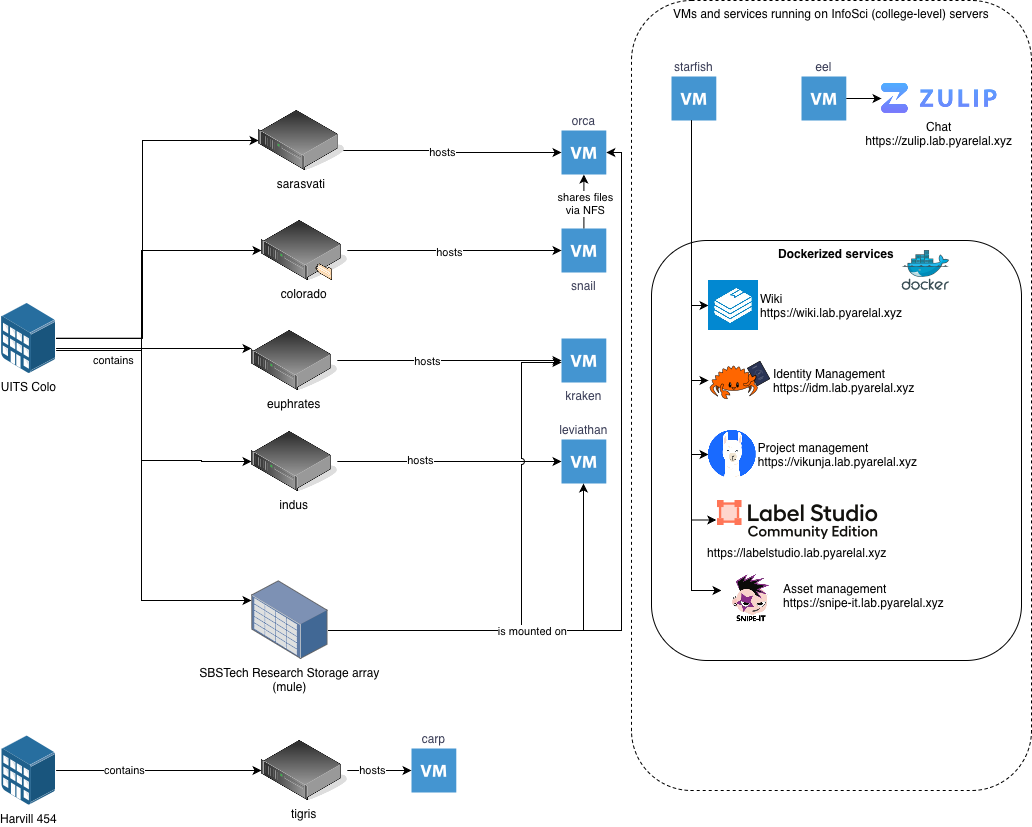
<div drawio-diagram="60"><img src="https://wiki.lab.pyarelal.xyz/uploads/images/drawio/2026-02/drawing-3-1770403719.png" alt=""/></div>

### Compute

The ML4AI lab has the following compute VMs:

<table border="1" id="bkmrk-vm-name-host-cpu-ram" style="border-collapse: collapse; width: 100%; height: 116px;"><colgroup><col style="width: 13.571429%;"></col><col style="width: 35.952381%;"></col><col style="width: 13.571429%;"></col><col style="width: 36.785714%;"></col></colgroup><thead><tr style="height: 29px;"><td style="height: 29px;">VM Name</td><td style="height: 29px;">CPU</td><td style="height: 29px;">RAM</td><td style="height: 29px;">GPUs</td></tr></thead><tbody><tr style="height: 29px;"><td style="height: 29px;">kraken</td><td style="height: 29px;">AMD EPYC 7662 64-Core Processor (2.0 GHz)</td><td style="height: 29px;">720 GB</td><td style="height: 29px;">2x NVIDIA A100 (40 GB)</td></tr><tr style="height: 29px;"><td style="height: 29px;">leviathan</td><td style="height: 29px;">AMD EPYC 7763 64-Core Processor (2.45 GHz)</td><td style="height: 29px;">720 GB</td><td style="height: 29px;">6x NVIDIA RTX A6000</td></tr><tr style="height: 29px;"><td style="height: 29px;">carp</td><td style="height: 29px;">AMD EPYC-Rome Processor</td><td style="height: 29px;">95 GB</td><td style="height: 29px;">1x NVIDIA GeForce RTX 3090</td></tr><tr><td>orca</td><td>AMD EPYC 9474f, 48-core, 3.60 GHz, 256MB cache</td><td>1.5 TB (tentative)</td><td>2x NVIDIA H100 NVL (94GB hbm3, PCIE 5.0 x16)</td></tr></tbody></table>

TODO:

- Add information about venti

### Storage

The lab has a 20 TB NFS share mounted at /media/mule on the kraken, leviathan, and orca VMs.

There is a 90 TB NFS share mounted at /media/snail-ssd on the orca VM.

TODO:

- Add information about timelord

TODO:

- Add information about other legacy SISTA systems that are still operational.

### Backup

- VMs running on InfoSci servers (e.g., eel, starfish) are backed up every 6 hours
- As of 2025-03-06, VMs running on lab servers (e.g., kraken, leviathan) are not backed up, but the plan is to include them in the backup system in the future.

# Project management platform

We have a self-hosted instance of the [Vikunja](https://vikunja.io) project management app running at [https://vikunja.lab.pyarelal.xyz](https://vikunja.lab.pyarelal.xyz).

# Snipe-IT

We have an instance of Snipe-IT at [https://snipe-it.lab.pyarelal.xyz](https://snipe-it.lab.pyarelal.xyz) that we will use to keep track of our equipment and consumables.

You can log into the Snipe-IT instance using your lab credentials (username and Unix password).

# Zulip

We have an instance of Zulip set up at [https://zulip.lab.pyarelal.xyz](https://zulip.lab.pyarelal.xyz), to enable efficient communication.

# LiteLLM

The lab runs a [LiteLLM](https://litellm.ai) proxy that gives you access to large language models running on the lab's GPU server (orca), using an OpenAI-compatible API. This lets you use tools like Python scripts, curl, and Claude Code with local open-source models without needing an external API account.

## Getting access

Email <adarsh@arizona.edu> to request an API key. Include a brief description of how you plan to use it.

The API base URL is: `https://litellm.lab.pyarelal.xyz`

Once you have a key, set it as an environment variable so it persists across sessions. Add this to your shell config file (e.g. `~/.bashrc`, `~/.zshrc`):

```
export LITELLM_API_KEY=sk-...
```

Then reload your shell: `source ~/.bashrc` (or open a new terminal).

## Available models

To see which models are currently available:

```
curl https://litellm.lab.pyarelal.xyz/models \
  -H "Authorization: Bearer $LITELLM_API_KEY"
```

Models are named in the format `ollama/<model-name>`, e.g. `ollama/qwen3.5:latest`.

## Using with curl

```
curl -X POST https://litellm.lab.pyarelal.xyz/chat/completions \
  -H "Authorization: Bearer $LITELLM_API_KEY" \
  -H "Content-Type: application/json" \
  -d '{
    "model": "ollama/qwen3.5:latest",
    "messages": [{"role": "user", "content": "Hello!"}]
  }'
```

## Using with Python

Install the OpenAI SDK if you don't have it: `pip install openai`

```
import os
from openai import OpenAI

client = OpenAI(
    api_key=os.environ["LITELLM_API_KEY"],
    base_url="https://litellm.lab.pyarelal.xyz",
)

response = client.chat.completions.create(
    model="ollama/qwen3.5:latest",
    messages=[{"role": "user", "content": "Hello!"}],
)
print(response.choices[0].message.content)
```

## Using with Claude Code

You can use Claude Code with the lab's models by pointing it at LiteLLM instead of Anthropic's API. Set these environment variables before running `claude`:

```
export ANTHROPIC_API_KEY=$LITELLM_API_KEY
export ANTHROPIC_BASE_URL=https://litellm.lab.pyarelal.xyz
claude
```

Then switch to a lab model inside Claude Code with the `/model` command:

```
/model ollama/qwen3.5:122b
```

Note: open-source models have different capabilities than Claude — some Claude Code features (e.g. complex tool use) may not work as well.

# Monitoring

## Overview

The lab uses a self-hosted monitoring stack to track CPU, GPU, memory, disk, network, and per-process resource usage across all lab servers. Metrics are visualised in Grafana, which is available at [https://grafana.lab.pyarelal.xyz](https://grafana.lab.pyarelal.xyz). Log in with your lab account via the **Sign in with Kanidm** button.

## What is monitored

- CPU usage (by type: user, system, iowait, etc.)
- RAM usage (used, cached, buffers)
- Network traffic (sent and received)
- Disk I/O (read and write)
- GPU utilisation, memory, temperature, and power draw (on GPU-equipped hosts)
- Top processes by CPU and memory

## Monitored hosts

<table id="bkmrk-hostgpu-monitoringor"><thead><tr><th>Host</th><th>GPU monitoring</th></tr></thead><tbody><tr><td>orca</td><td>Yes (NVIDIA)</td></tr><tr><td>kraken</td><td>Yes (NVIDIA)</td></tr><tr><td>leviathan</td><td>Yes (NVIDIA)</td></tr><tr><td>starfish</td><td>No</td></tr><tr><td>eel</td><td>No</td></tr></tbody></table>

## Using the dashboard

After logging in, open the **Infrastructure Overview** dashboard. Use the **Host** dropdown at the top to switch between servers. The time range selector in the top right controls how far back the graphs show.

The dashboard is divided into three sections:

- **System** — CPU, RAM, network, and disk panels visible for all hosts
- **GPU** — GPU panels, populated only for GPU-equipped hosts
- **Processes** — top 10 processes by CPU and memory usage