# Postgres Cluster
The `pg_*` functions are wrappers around the old way of setting up a cluster, using `initdb`. With the commands below (adapted from this discussion), I was able to create a new cluster in the desired location `/space/paulosoares/postgres`. Later, this folder may be moved to another directory if needed (some config below may need to be adjusted).
1. Create the folders where the data, logs and conf will be placed:
```shell
mkdir -p /space/paulosoares/postgres/data/11/paulosoares
mkdir -p /space/paulosoares/postgres/run
```
2. Create cluster specifying the directory where the data will be saved:
```shell
/usr/lib/postgresql/11/bin/initdb -D /space/paulosoares/postgres/data/11/paulosoares
```
3. Change the config file to attribute a unique, unused port for the cluster
and change the location of the socket info:
```shell
vim /space/paulosoares/postgres/data/11/paulosoares/postgresql.conf
```
change `port`and`unix_socket_directories`, for example:
```
port = 5433
unix_socket_directories = '/space/paulosoares/postgres/run'
```
4. Start the server. This will run in background:
```shell
/usr/lib/postgresql/11/bin/pg_ctl -D /space/paulosoares/postgres/data/11/paulosoares
```
5. Create a database in the cluster (e.g. tomcat):
(Make sure the port matches the one defined above)
```shell
createdb tomcat -h localhost -p 5433
```
6. Use it
(initdb has already created a superuser from your $USER name)
(Make sure the port matches the one defined above)
In the Postgres console:
\- You can run `\dt` to get a list of tables in the database.
\- You can perform normal SQL queries.
```shell
psql -p 5433 -h /space/paulosoares/postgres/run -d tomcat
```
7. Stop the server (if necessary). I never had to stop mine:
```shell
/usr/lib/postgresql/11/bin/pg_ctl -D /space/paulosoares/postgres/data/11/paulosoares
```
To check the status of the cluster:
```shell
PG_CLUSTER_CONF_ROOT=/space/paulosoares/postgres/data pg_lsclusters
```
### Port
It is important to set a port that is not being used by another cluster. The default 5433 has been
working for us.
### Troubleshooting
- Check if the cluster is running:
```shell
PG_CLUSTER_CONF_ROOT=/space/paulosoares/postgres/data pg_lsclusters
```
[](https://wiki.lab.pyarelal.xyz/uploads/images/gallery/2024-08/aT2image.png)
- Start the cluster if not running (this happens after Gauss is rebooted):
```shell
/usr/lib/postgresql/11/bin/pg_ctl -D /space/paulosoares/postgres/data/11/paulosoares
```
### Connecting to the DB from a local machine
An easy way to play with the database is to install a client locally and connect to the database
server. I use pgadmin as a client. Below are the steps to connect to a Postgres cluster on Gauss:
1. Download and install pgadmin locally.
2. Connect to Gauss with port forwarding in a terminal (use tmux for longer connections),
mapping the cluster port on Gauss to a local port of your desire:
```shell
# For a cluster on port 5433 on Gauss to port 5433 locally
# Note: "gauss" is an alias in my ~/.ssh/config for Gauss tunneling
# through lectura. Adjust the name according to your alias.
ssh -L 5433:localhost:5433 gauss
```
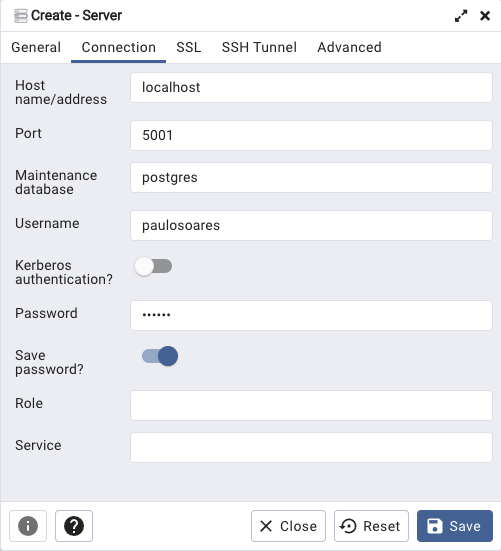
3. Open pgadmin and create a new server. Fill in the Connection tab as below and save:
- **Host:** localhost
- **Port:** 5433 (this is the local port used in the previous command)
- **Maintenance database:** any database in the cluster (e.g. postgres). All databses will be visible regardless.
- **Username:** your database username (typically the same as your OS username)
- **\[optional\] Password:** the cluster password attributed to your user. All users can connect without the password set to them by default. So you can leave this field blank.
[](https://wiki.lab.pyarelal.xyz/uploads/images/gallery/2024-08/obZimage.png)
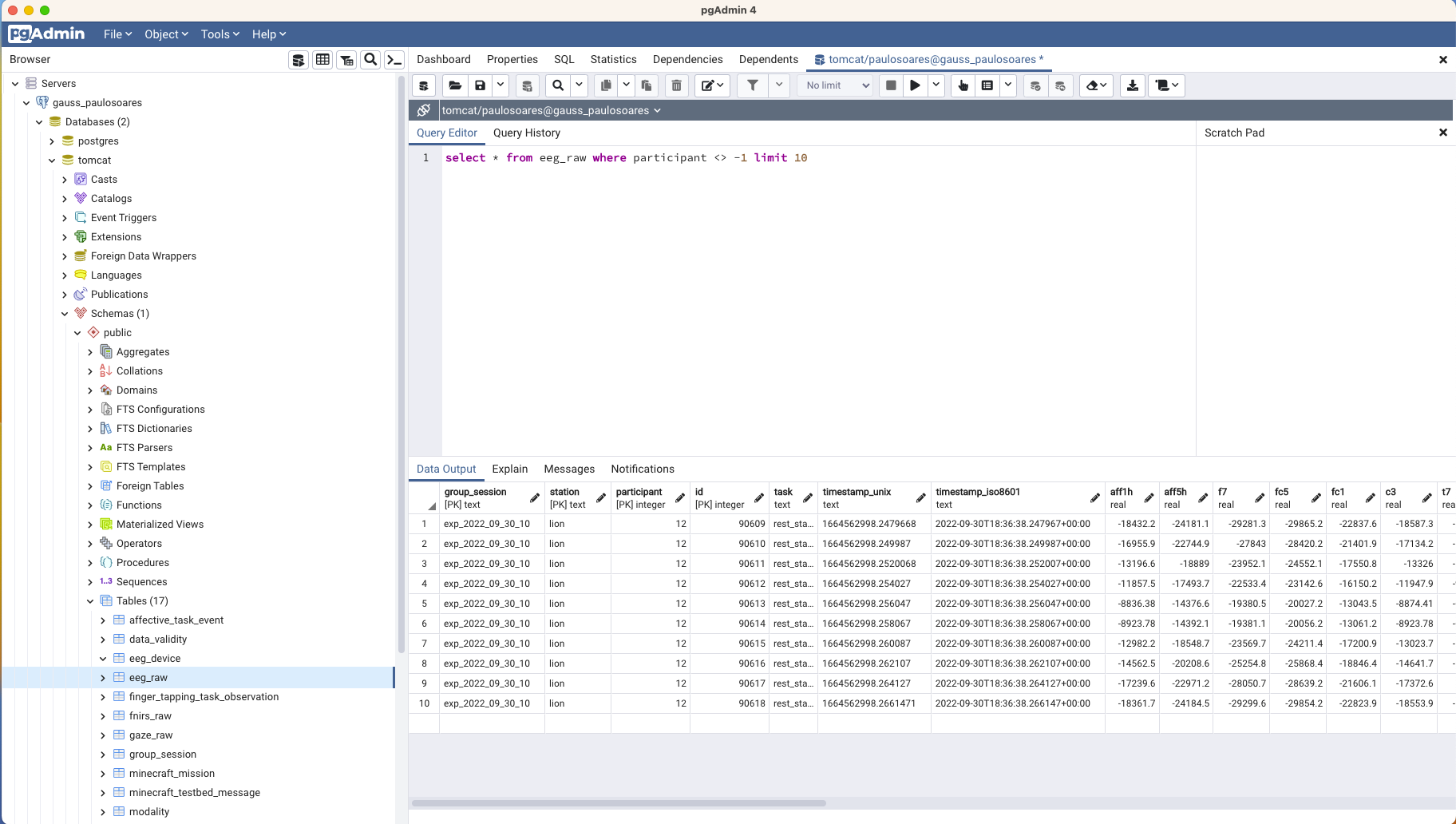
4. Use it
Now you should be able to see all the databases in the cluster in Gauss, including the one you
entered as maintenance database. We can query the tables and see their properties in a more
user-friendly way, as shown in the picture below:
[](https://wiki.lab.pyarelal.xyz/uploads/images/gallery/2024-08/IvRimage.png)
### New User
To create a new user and grant it permission to access the tables, do the following:
- In Gauss, connect to the database:
```shell
psql -p 5433 -h /space/paulosoares/postgres/run -d tomcat
```
- Create the user:
```postgresql
CREATE USER ;
-- List users and check the new user is there:
\du
-- Exit the CLI with:
\q
```
- Save the following to a local file (e.g., ~/db\_script ) replacing <username> with the username filled above:
```postgresql
DO $$
DECLARE
table_name text;
BEGIN
FOR table_name IN ( SELECT tablename FROM pg_tables WHERE schemaname = 'public' )
LOOP
EXECUTE 'GRANT SELECT ON TABLE public.'|| table_name || ' TO '
END LOOP;
END $$;
```
- Grant select permission of all tables to the new user:
```shell
psql -p 5433 -h /space/paulosoares/postgres/run -d tomcat -a -f ~/db\_script
```
### Superuser
The users created with the command above, can only select items from the tables. To modify
and delete them, they will need to have other permissions.
Another option is to give the superuser role to a user, this will grant them permission to do
anything in the database, including changing the permission of others. Use the command below
sparingly:
```postgresql
ALTER USER WITH SUPERUSER PASSWORD ''
-- Check the user is a superuser:
\du
```
###
Populating the existing tables
Instructions in:
[https://github.com/ml4ai/tomcat/tree/paulosoares/praat/human\_experiments/datasette\_interface](https://github.com/ml4ai/tomcat/tree/paulosoares/praat/human_experiments/datasette_interface)